
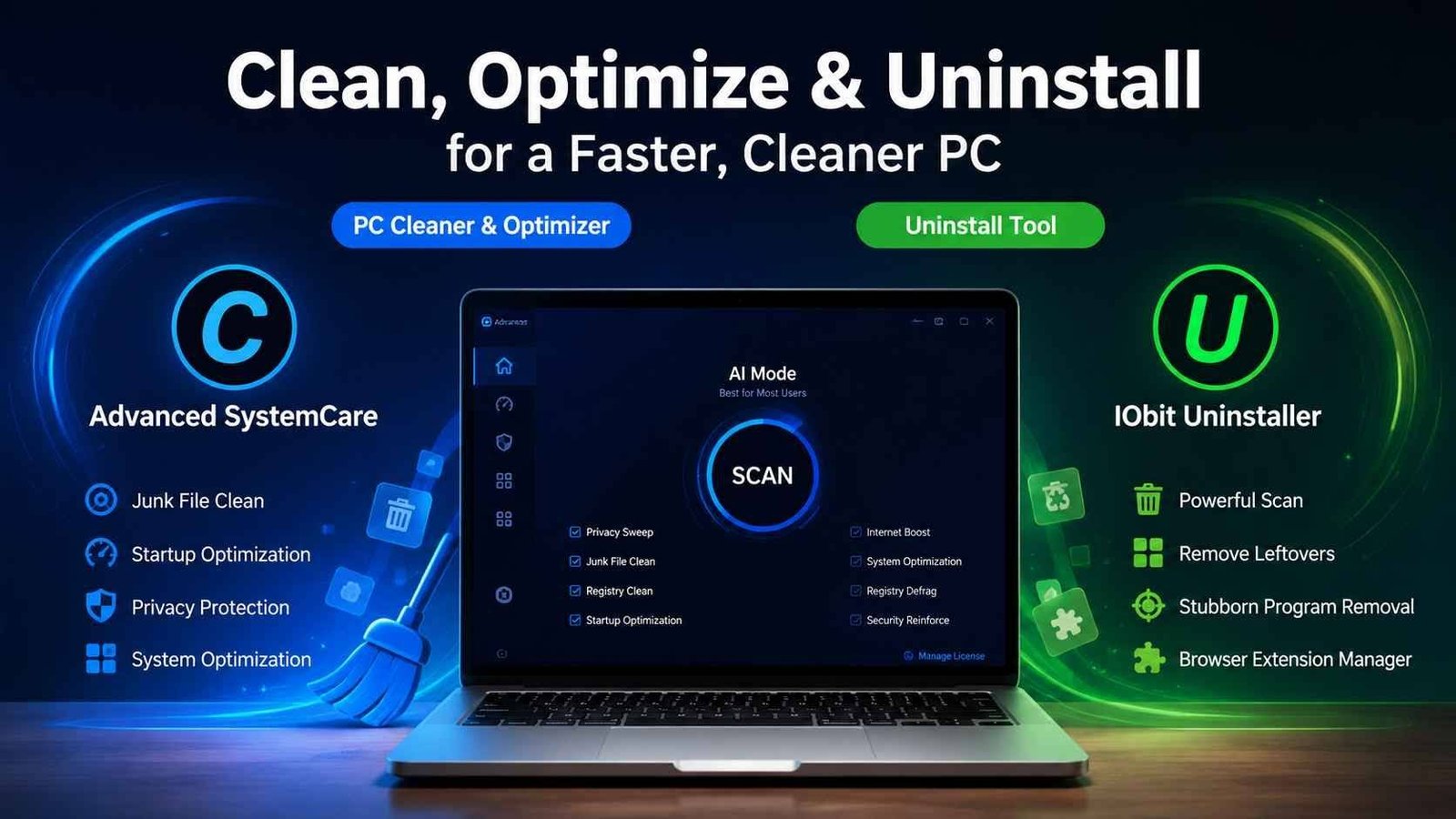
A Windows computer naturally changes over time. Every application you install, file you download, and update you receive leaves behind data that gradually affects performance. Temporary files accumulate, startup programs multiply, and unused software occupies valuable storage. While modern hardware is powerful, regular maintenance remains one of the simplest ways to keep a system running efficiently.
Many users assume they need a new computer when their current one becomes sluggish. In reality, routine optimization often restores responsiveness without expensive hardware upgrades. Two utilities that play different but complementary roles in PC maintenance are a PC cleaner and an uninstall tool. Understanding how each works helps users build a smarter maintenance routine that supports long-term performance.
Why Windows Performance Declines Over Time
Even a freshly installed Windows system won’t remain in perfect condition forever. Daily computer use creates digital clutter that slowly builds up in the background.
Some common causes include:
- Temporary internet files
- Windows update leftovers
- Application cache files
- Invalid shortcuts
- Startup programs
- Fragmented system settings
- Residual files from removed software
Individually, these issues may seem minor. Collectively, they can increase boot times, consume storage space, and make everyday tasks feel slower than they should.
This is why many users include a reliable PC cleaner as part of their regular maintenance routine.
What Does a PC Cleaner Actually Do?
A PC cleaner is designed to identify unnecessary files and optimize various areas of Windows without affecting personal documents.
Instead of deleting important information, quality cleaning software focuses on removable system clutter, including:
- Junk files
- Temporary folders
- Browser cache
- Privacy traces
- Log files
- Invalid registry entries
- Startup optimization opportunities
The goal is not simply to free storage space but to improve overall system responsiveness by reducing unnecessary background load.
Solutions like Advanced SystemCare include multiple optimization features within a single platform, helping users automate many maintenance tasks instead of performing them manually.
Benefits of Regular PC Cleaning
Maintaining a cleaner operating system offers several practical advantages.
Faster Startup
Applications often add themselves to Windows startup without users realizing it. Optimizing startup items helps reduce boot times and improves responsiveness immediately after logging in.
Better Storage Management
Unused temporary files may consume several gigabytes over time. Removing unnecessary data provides more space for documents, games, photos, and software updates.
Improved Privacy
Many applications store browsing history, temporary usage records, and other traces. Cleaning these files helps reduce unnecessary digital footprints.
Smoother System Operation
Reducing clutter allows Windows to manage resources more efficiently, particularly on older computers with limited storage capacity.
Why Simply Deleting Programs Isn’t Enough
Many users believe uninstalling software through Windows Settings completely removes an application.
Unfortunately, that is rarely the case.
Traditional uninstall methods frequently leave behind:
- Empty folders
- Registry entries
- Configuration files
- Scheduled tasks
- Cached installation files
- Shortcuts
- Update components
These leftovers accumulate over months or years, creating unnecessary clutter.
This is where a dedicated uninstall tool becomes valuable.
How an Uninstall Tool Helps
An uninstall tool goes beyond Windows’ default removal process.
After the standard uninstall completes, the software performs an additional scan looking for remaining components associated with the removed program.
These may include:
- Registry leftovers
- Hidden folders
- Temporary installation files
- Invalid shortcuts
- Background services
- Plugin components
Removing these remnants helps keep Windows cleaner and reduces the accumulation of unnecessary files over time.
Utilities like IObit Uninstaller are designed specifically for this purpose, making software removal more complete than the built-in Windows uninstaller.
When Should You Use an Uninstall Tool?
An uninstall tool is especially useful in several situations.
Removing Large Applications
Games, editing software, development tools, and security programs often install hundreds or thousands of files throughout Windows.
A complete cleanup helps recover storage space more effectively.
Eliminating Unwanted Bundled Software
Many new PCs include pre-installed applications that users never intend to use.
Removing these programs thoroughly helps reduce unnecessary background processes.
Cleaning Up Trial Software
Trial versions frequently leave configuration files even after removal.
A dedicated uninstall tool helps eliminate these remaining components.
Preparing for Software Reinstallation
If a program becomes corrupted, leftover files can sometimes interfere with a fresh installation.
Completely removing previous versions provides a cleaner starting point.
Building a Simple PC Maintenance Routine
Maintaining Windows doesn’t require technical expertise.
A practical monthly routine may include:
- Remove unused software.
- Use an uninstall tool to eliminate leftover files.
- Run a PC cleaner to clear temporary data.
- Review startup applications.
- Install Windows updates.
- Update drivers when necessary.
- Restart the system regularly.
Following these steps consistently helps prevent gradual performance degradation.
Choosing Reliable Optimization Software
Not every optimization utility provides the same experience.
When selecting maintenance software, consider features such as:
- Easy-to-understand interface
- Automatic scanning
- Safe cleaning methods
- Startup optimization
- Privacy protection
- Scheduled maintenance
- Regular software updates
- Compatibility with current Windows versions
Established software developers typically provide ongoing updates to maintain compatibility with new Windows releases and security improvements.
Common Myths About PC Optimization
Several misconceptions still exist regarding PC maintenance.
Myth 1: Windows Doesn’t Need Cleaning
Windows includes built-in maintenance features, but they don’t remove every type of unnecessary file or leftover application data.
Additional optimization tools can complement Windows’ native utilities.
Myth 2: Deleting Files Manually Is Enough
Manual cleanup can remove visible files, but hidden folders, registry entries, and application remnants often remain untouched.
Myth 3: Optimization Software Is Only for Old Computers
Even modern PCs generate temporary files, caches, and unused data. Routine maintenance benefits both new and older systems.
Myth 4: All Cleaners Delete Important Files
Reputable optimization software focuses on removable system clutter rather than personal documents. Users should still review scan results before confirming major cleanup operations.
Keeping Your PC Healthy for the Long Term
A well-maintained computer delivers a smoother user experience, shorter startup times, and more efficient storage management. While no maintenance tool can replace proper hardware or fix every performance issue, routine optimization helps prevent many common slowdowns associated with everyday Windows use.
Using a trusted PC cleaner alongside a dedicated uninstall tool creates a balanced approach to system maintenance. One focuses on removing temporary clutter and optimizing Windows performance, while the other ensures unwanted applications are removed more thoroughly. Together, these tools help users maintain cleaner systems and reduce unnecessary digital buildup over time.
Rather than waiting until a computer becomes noticeably slow, adopting regular maintenance habits can extend the useful life of a Windows PC and make daily computing more enjoyable.
FAQs
1. What is the purpose of a PC cleaner?
A PC cleaner removes temporary files, junk data, and unnecessary system clutter while helping optimize Windows performance and free storage space.
2. Why should I use an uninstall tool instead of the default Windows uninstaller?
A dedicated uninstall tool scans for leftover files, registry entries, and folders that Windows often leaves behind after uninstalling software.
3. How often should I clean my PC?
For most users, running a PC cleaner once every two to four weeks is sufficient to maintain good system performance.
4. Can removing unused programs improve PC speed?
Yes. Eliminating unnecessary software reduces storage usage, background services, and startup items that may affect overall system responsiveness.
5. Is it safe to use PC optimization software?
Using well-established and reputable optimization software is generally safe when users review scan results and follow recommended settings.





Leave a Reply